Mobile App
The .NET MAUI app targets Android, iOS, macOS Catalyst, and Windows from a single codebase. Architecture is MVVM using the Community Toolkit. All API calls go through Refit-generated typed clients backed by IHttpClientFactory, with JWT authentication and automatic token refresh. Live connector state arrives via a SignalR client that reconnects automatically if the connection drops.
Login
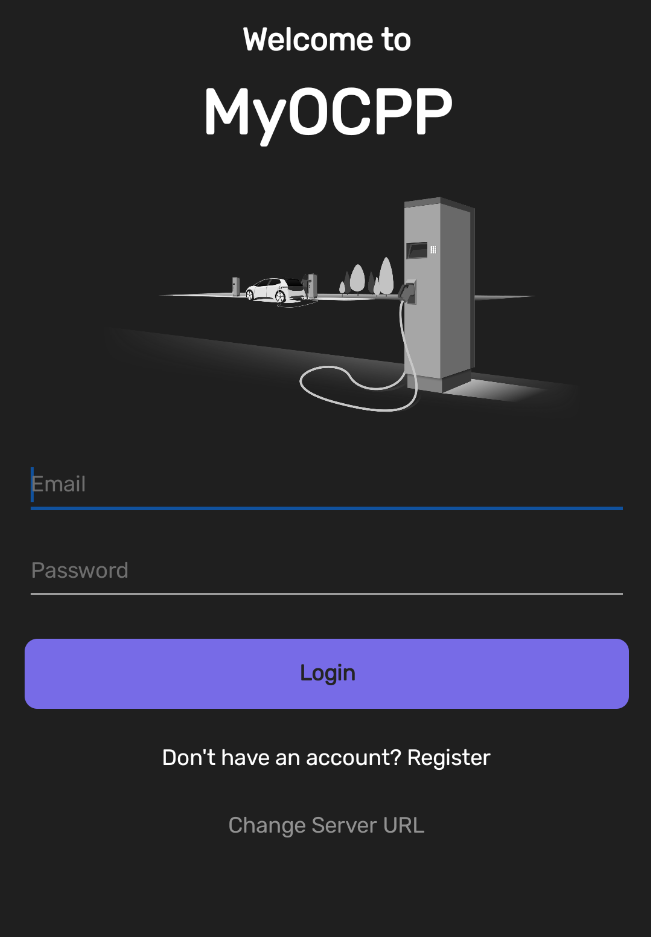
The login screen takes an email and password and exchanges them for a JWT access token and a refresh token stored in secure local storage. The server URL the app talks to is configurable — a “Change Server URL” link at the bottom of the screen opens a text field, useful for pointing the app at a development instance or a self-hosted server. An ActivityIndicator covers the form while the login request is in flight.
Overview Tab
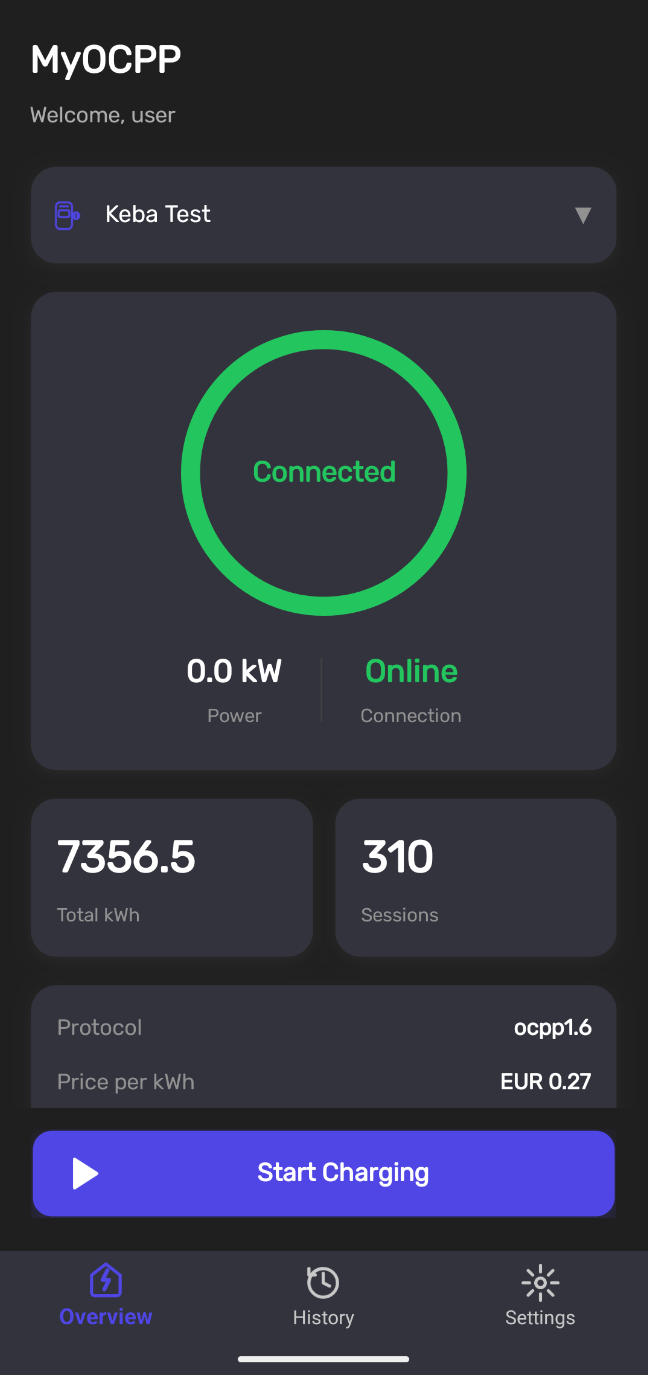
The overview tab is the primary screen for day-to-day use. It combines live monitoring with direct charging control.
Station Selector — a picker at the top of the screen lists every station assigned to the user’s account. Switching stations immediately re-fetches the connector state and updates all cards below.
Charging Status — the status card is the centrepiece. It displays:
- A large circular progress indicator showing the OCPP connector status (Available, Charging, Occupied, Faulted, …) rendered as both text and a rotating arc that fills during an active session.
- The current power draw in kW on the left and the connection status (Online / Offline) on the right.
- Energy consumed in the current session (kWh) and session duration.
- Protocol version (OCPP 1.6 / 2.0) and the configured price per kWh.
- Last Connected timestamp, formatted as a relative time (“2 minutes ago”).
Monthly Stats — two metric chips below the status card show total energy consumed (kWh) and total session count for the current month across the selected station.
Action Button — a single prominent button at the bottom of the status card adapts its label, colour, and icon to the current state:
| Connector state | Button label | Colour |
|---|---|---|
| Available | Start Charging | Green |
| Charging / Occupied | Stop Charging | Blue |
| Error / Faulted | Retry | Red |
| Disconnected | Station Offline | Grey (disabled) |
Tapping Stop Charging opens an inline confirmation sheet that summarises the energy charged and session duration before committing the stop command. Tapping outside the sheet dismisses it without stopping.
All charging actions trigger a loading state on the button and show a toast notification (auto-dismissing after three seconds) with success or error feedback. If a command fails, the button returns to its previous state and the error is shown in the toast.
An offline banner in orange slides in at the top of the screen whenever the device loses network connectivity, and all action buttons are disabled until connectivity is restored.
Real-time state changes — a charger coming online, a session starting or ending — arrive via the SignalR connection and update every value on screen without requiring a manual refresh. Pull-to-refresh is also available as a fallback.
History Tab
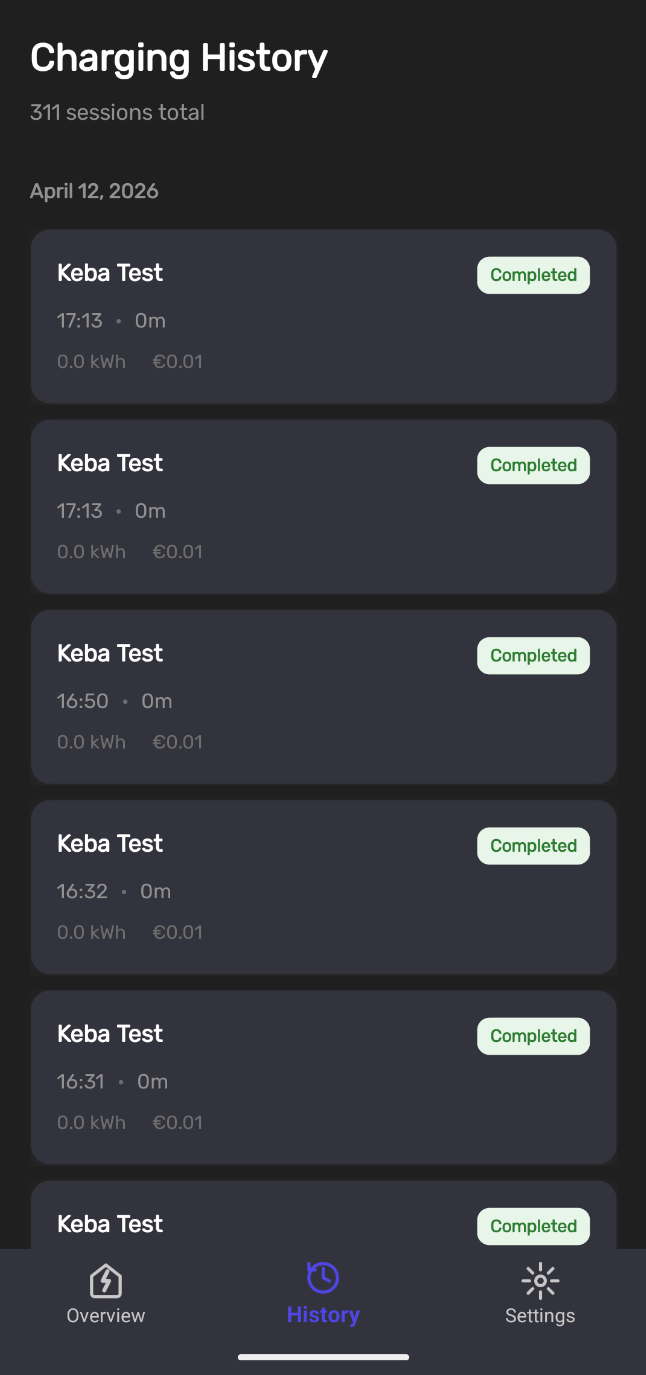
The history tab shows all charging sessions for the selected station, grouped by date. Each session card displays:
- The charging station name and a status badge (green for completed, blue for still-running).
- Formatted start time and session duration side by side.
- Energy consumed in kWh and the total cost in euros.
The list is loaded on tab open and can be refreshed by pulling down. A total session count is shown in the page header.
Settings Tab
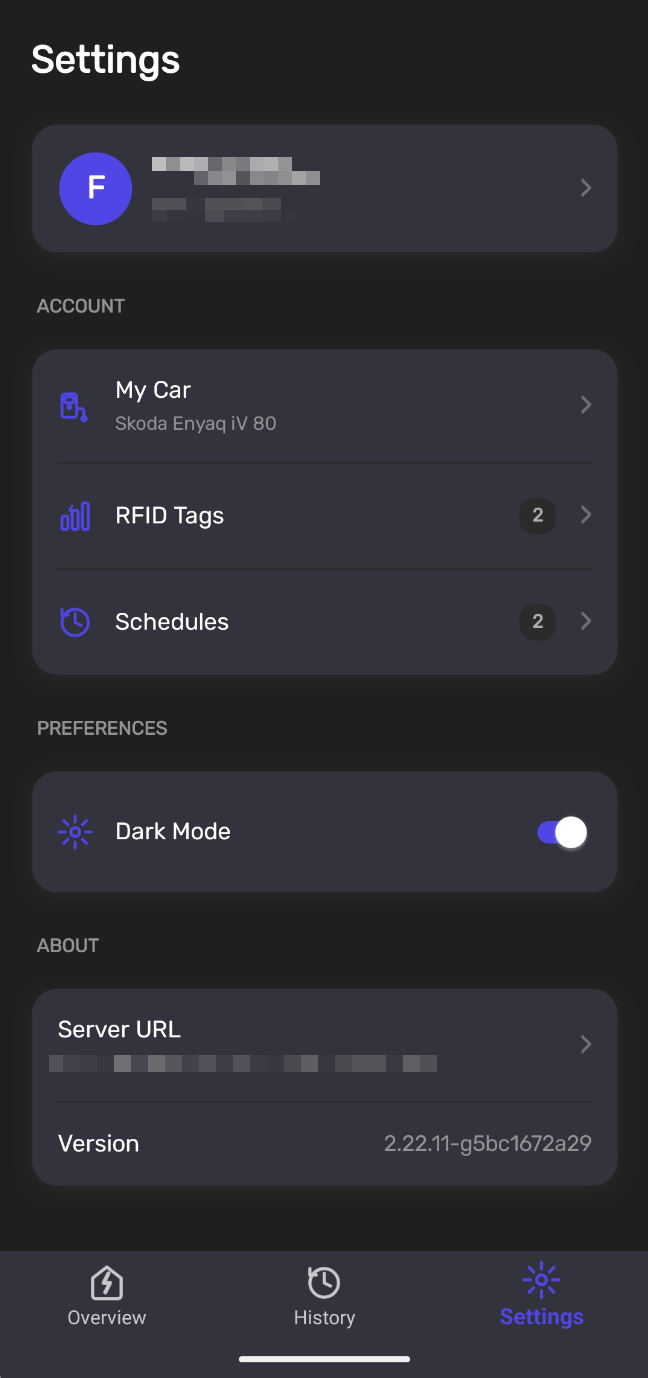
The settings tab is the account management hub for the mobile app.
Profile card at the top shows the user’s initials in a coloured avatar, their name, and email. Tapping it opens the Profile page where full name and preferred timezone can be updated. The timezone picker exposes the same complete timezone list as the web portal.
Account section links to three sub-pages:
- My Car — identical to the web portal’s car settings: display name, brand/model, battery size in kWh. When a car with SoC integration is configured, the current state of charge is shown as a read-only percentage. The save button is only enabled when something has actually changed.
- RFID Tags — a read-only view of the tags assigned to the account. Tag names, IDs, expiry dates, and blocked/active status are all visible. Tags themselves are managed in the web portal; the mobile app surfaces them for reference.
- Charging Schedules — a full schedule management interface. The list shows schedule name, enabled status, station, and whether the schedule is one-off or recurring. Swiping left on a schedule reveals a delete action (red background). Tapping a schedule opens an edit view; the floating button at the bottom creates a new one. Schedule creation requires a name, a station, a tag, a start time, and a type (once / recurring).
Preferences section — a single Dark Mode toggle that switches the app between the system light and dark theme immediately.
About section — displays the configured server URL (tappable to change) and the current app version.
Logout — signs out the user, clears all stored tokens, and returns to the login screen.