Web Portal
The management portal is a Blazor Server application styled with MudBlazor (Material Design). Every page maintains a SignalR connection back to the server, so connector state updates appear live without any polling. The app supports a light and dark theme toggled from the top bar — the preference is persisted per user in the database.
Dashboard
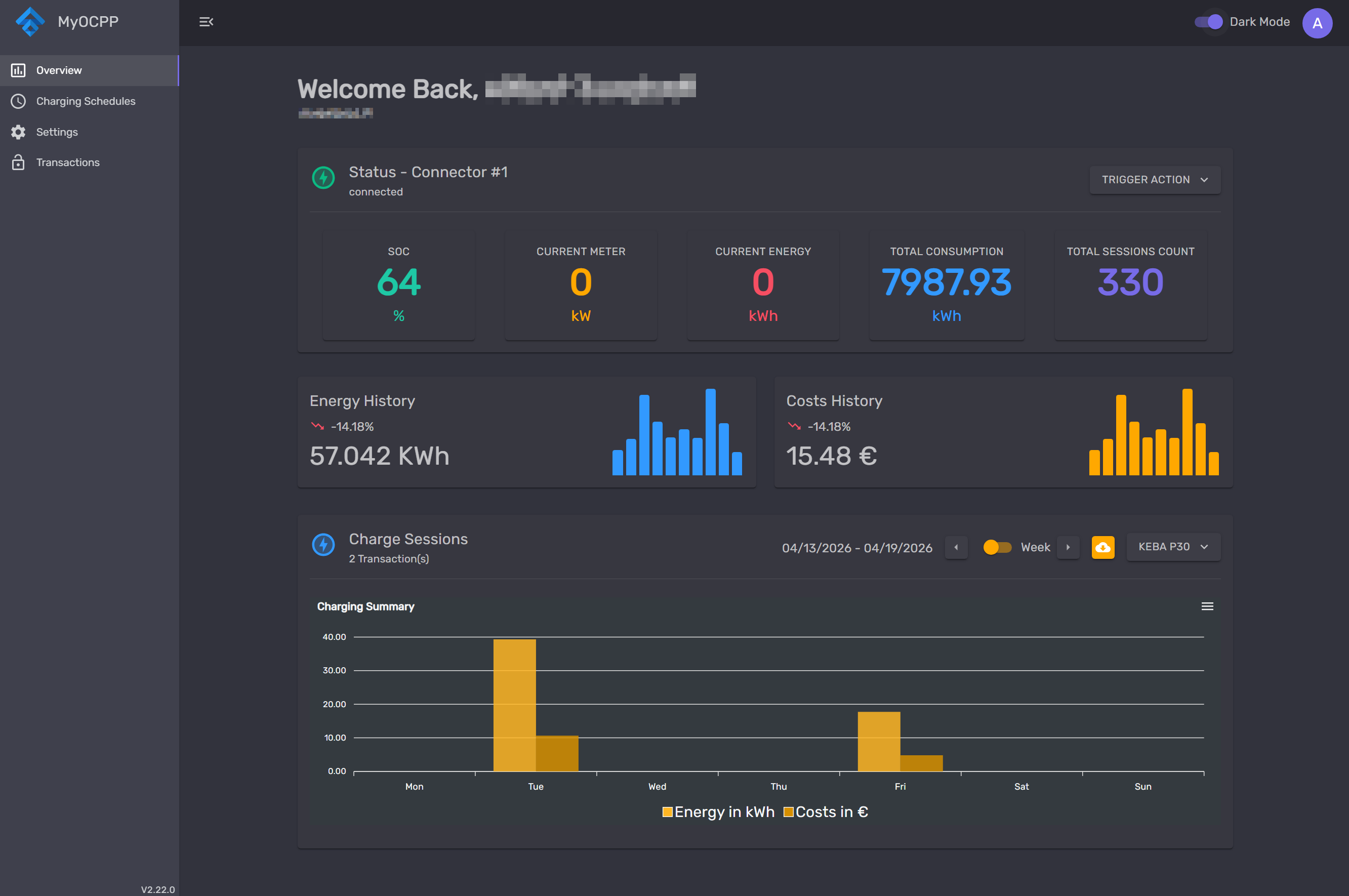
The home screen is the operational hub. It opens with a personalised greeting (full name from the user’s profile, email underneath) and immediately shows the live state of the first charging station.
Station Status card sits at the top of the content area and covers every action a user might need without navigating away:
- The current connector status (Available, Charging, Occupied, Faulted, …) is shown with a colour-coded indicator and the station name and serial number below it.
- Five action buttons are always visible: Start Charging, Stop Charging, Unlock Connector, Soft Reset, and Hard Reset. Buttons that are not applicable to the current state are disabled automatically — you cannot hit “Stop Charging” when nothing is running.
- If the user has a car and a default RFID tag configured, those are passed through to the start command automatically.
Below the status card two history charts sit side by side. Both are ApexCharts bar charts that update when the date range changes:
- Energy History — total kWh for the selected period, a percentage trend vs. the previous period, and a bar series per time bucket.
- Costs History — same shape, expressed in euros using the station’s configured price per kWh.
The Charge Sessions card beneath occupies the full width. It pairs a week/month toggle with previous/next navigation arrows so you can page through any date range. A dual-series bar chart shows energy (kWh) and cost (€) side by side for each bucket. A charging station dropdown in the header lets you switch context to any station assigned to your account without leaving the page. An Excel export button downloads all transactions in the selected range as a spreadsheet.
Charging Stations
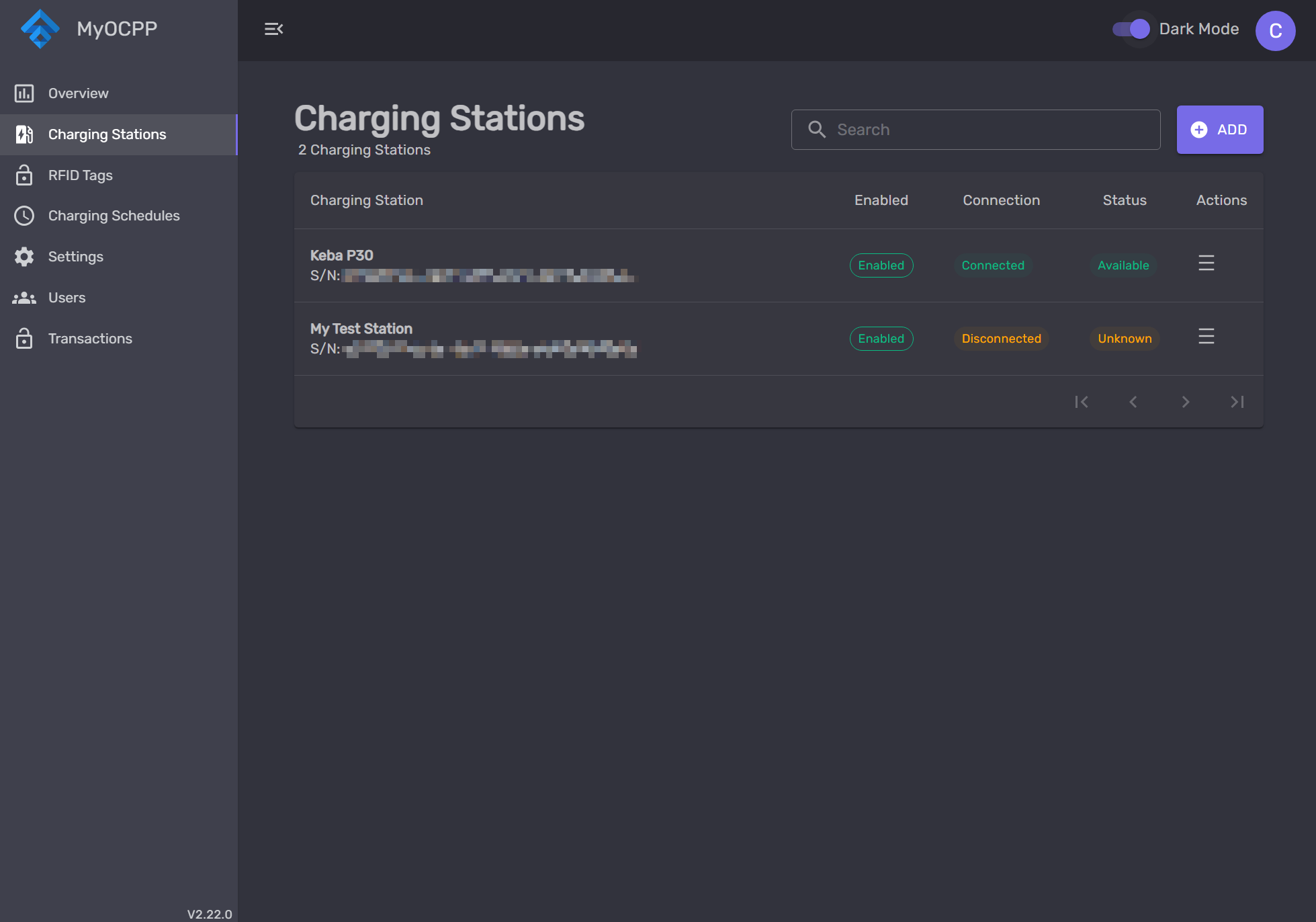
The stations page lists every wallbox registered to the account in a searchable, paginated table. Each row carries five pieces of information:
- Name and Serial Number — the display name and the OCPP station ID used in the WebSocket URL. Clicking either navigates to the detail view.
- Enabled — whether the station is allowed to communicate. Shown as a bordered chip (green = Enabled, red = Disabled).
- Connection — whether the station currently has an active WebSocket connection to the OCPP gateway (Connected / Disconnected).
- Status — the current OCPP connector status: Available, Charging, Occupied, Reserved, Faulted, or Unknown when the station is not connected. Each value has its own colour (green, blue, orange, red, grey).
- Actions — a hamburger menu with Edit Station and Delete Station. Delete asks for confirmation before proceeding.
A search field in the header filters rows in real time. The Add button opens the station creation dialog.
Station Detail
Opening a station navigates to the edit view, which stacks three panels:
- Station Status — the same live status card as the dashboard, scoped to this station.
- Station Properties — editable fields for the display name, OCPP username/password, price per kWh, and enabled flag. Saving updates the record immediately.
- OCPP Configuration — a Fetch Configuration button sends a
GetConfigurationrequest over OCPP and renders every key-value pair returned by the charger. Any key can be edited in place and pushed back with aChangeConfigurationcall. This covers everything the charger exposes — heartbeat intervals, meter value sample rates, authorisation modes, maximum current limits, and any vendor-specific keys.
Transactions
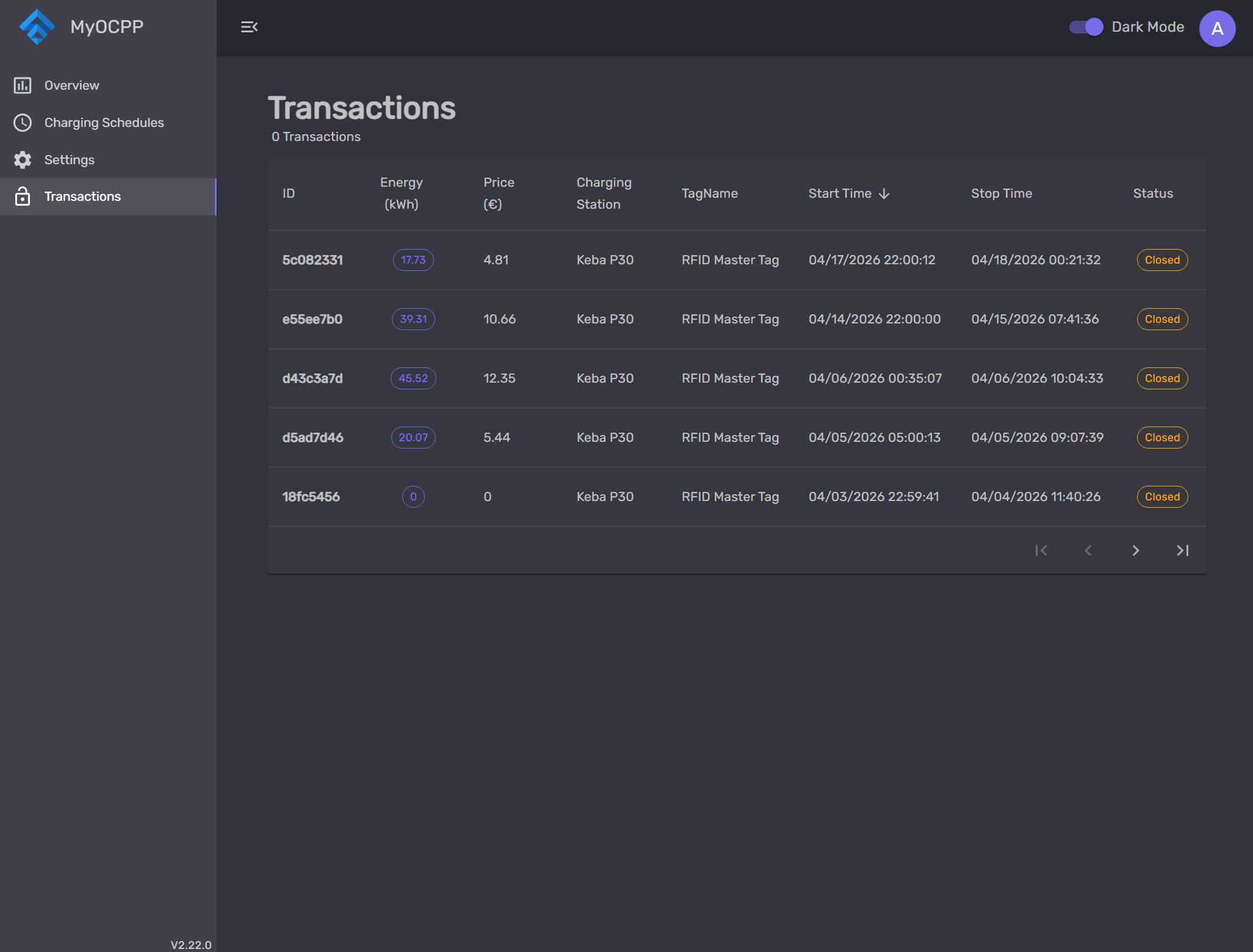
The transaction history page is a server-side paginated table sorted by start time descending by default. Each row shows:
- ID — the first eight characters of the transaction UUID.
- Energy — kilowatt-hours consumed, shown as a chip.
- Price — cost in euros.
- Charging Station — which wallbox ran the session.
- Tag — the RFID tag that authorised the start.
- Start Time / Stop Time — both rendered in the user’s configured timezone.
- Status — Open (session still running) or Closed (completed), colour-coded.
The Energy, Price, and Start Time columns are sortable. Pagination shows five rows per page.
RFID Tags
The tags page manages the access tokens that authorise charging sessions. The table columns are Tag ID (the raw RFID identifier, maximum 20 characters), Tag Name, Expiry Date, and Active status. Tags can be marked Blocked (shown in red) or Active (shown in green). A real-time search field filters the list as you type.
Creating a tag requires an ID, a name, an expiry date, and optionally a description and a parent tag. Parent/child relationships allow hierarchical authorisation — a child tag inherits the authorisation rights of its parent, useful for fleet or family scenarios.
Each tag can be assigned to one or more users. A user’s default tag is what gets submitted automatically when they hit “Start Charging” from the dashboard.
Charging Schedules
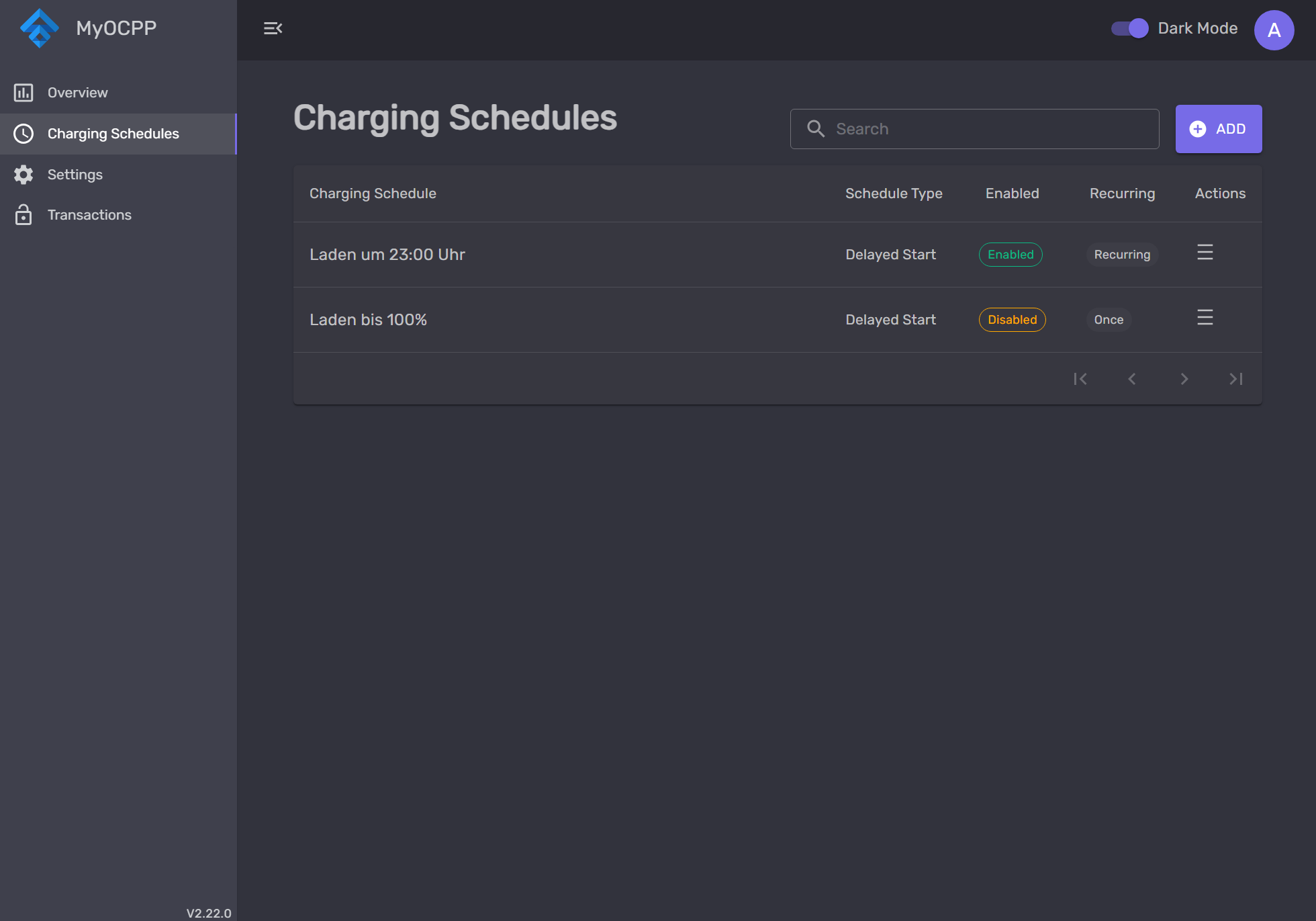
Schedules automate remote start transactions. Each schedule combines a station, a connector, an RFID tag, a start time, and a schedule type (once or recurring). The list page shows the schedule name, type, enabled status, and recurring flag in a searchable table with add/edit/delete actions.
The backend runs a background service (RemoteStartTransactionWorker) on a 30-second polling interval. It queries for any enabled schedules whose StartTime is due, sends a RemoteStartTransaction command over OCPP, and marks the schedule as processed. Recurring schedules reset themselves for the next period. All time calculations use the user’s configured timezone so that “charge at 23:00” means 23:00 in the user’s local time, not UTC.
If a car with a REST connector is linked, the schedule system can factor in the car’s current state of charge when deciding the optimal start time — the CalculateSoCQuery derives how many hours of charging are needed to reach the target and back-calculates the start moment.
Users
The users page is only visible to accounts with the ReadUsers permission. It lists all users belonging to the account — name, email, and actions — and excludes the currently logged-in user from the list so you cannot accidentally delete yourself.
Creating a user requires an email address. The form also lets you pre-assign charging stations and RFID tags from the account’s existing inventory, and optionally send a confirmation email so the new user can set their own password. Editing a user lets you change any of these assignments at any time.
Settings
The settings section has three sub-pages accessible from the sidebar:
Profile — the user’s full name and their preferred timezone. The timezone is a dropdown populated from the system’s complete timezone list and controls how all timestamps are displayed throughout the portal.
Car — links a car profile to the account. Fields include the car’s display name, brand and model, battery size in kWh, and a Car Connector selector. The connector selection is significant: if a REST connector is configured, the portal queries the car’s API for its current state of charge and makes that value available for schedule calculations. The background worker uses the SoC to determine when to start a delayed charge so that the battery reaches the target level at the right time.
REST Connector — configures an HTTP endpoint that the platform polls to retrieve the car’s live state of charge. This allows scheduling decisions to account for how much charge is already in the battery.